
Around a year ago, Microsoft introduced the ability to shift the Source of Authority (SoA) for groups from AD to Entra using Entra Cloud Sync. I wrote about that here, if you want to catch up on the group configurations or any related topics, especially related to an existing Connect Sync, as I had that around at the time – https://ajf.one/group-soa.
Recently, that some capability has been added to users, meaning user accounts can now be provisioned and owned in the cloud, and synced down to AD for use. This is pretty awesome in terms of account security, ease of provisioning, and moving towards that cloud-native future where AD may no longer need to exist.
In this post I’m going to cover some of the setup involved, covering both a new cloud only user being synced down to AD, and SoA takeover for an existing user synced up to Entra. There will be an assumption that Entra Cloud Sync is already in use for the sync up to Entra from AD, but everything still applies if you currently use Entra Connect Sync, just get at least one Cloud Sync agent set up (https://learn.microsoft.com/en-us/entra/identity/hybrid/cloud-sync/how-to-install).
Credit to Beau, Johannes, and Martin in the WinAdmins Community for helping to test and troubleshoot this, especially Beau for discovering the issue with the accidental deletion permissions.
Entra to AD Provisioning Configuration
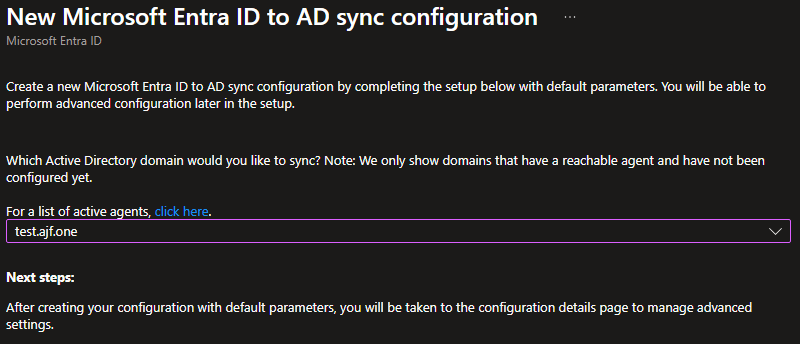
We’ll start by creating a new Entra to AD Cloud Sync Configuration for our domain:
Next, we’ll configure the scoping filters for this configuration. We’re going to enable both user and group provisioning, with assignment set to “selected users and groups”. Here, I’ll recommend creating an Entra group specifically for SoA swapping users and adding it to the assignment:
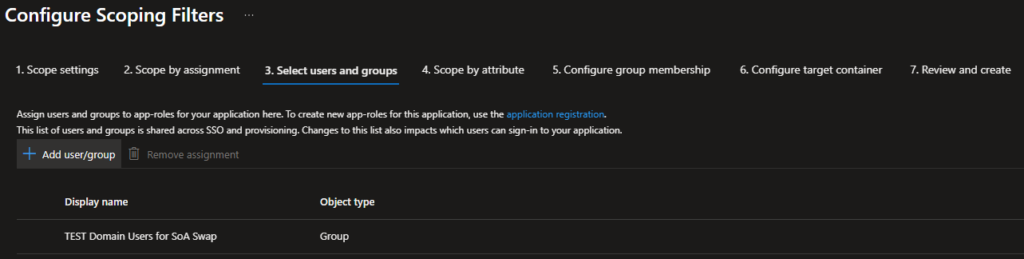
Doing this will sync both the group and any users added to the group down to AD, provided the user account is currently NOT enabled for on-premises sync. Any user accounts currently in this state will be skipped by the sync process, as seen by the default attribute scoping clause:

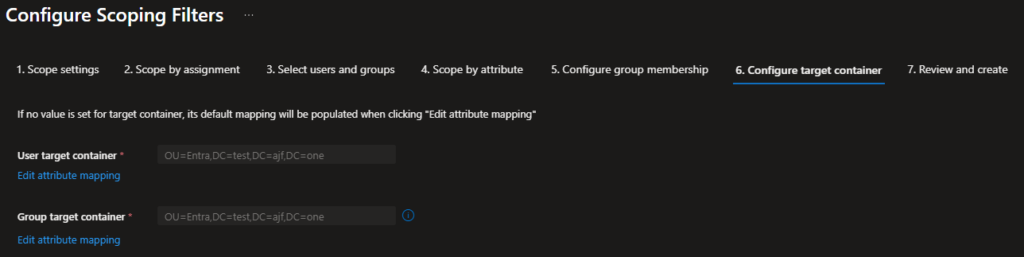
Lastly, we’ll configure the target containers for users and groups. In my example, I created a brand new OU off the domain root to house all SoA swapped objects. I did this to help isolate cloud-owned objects, as this new OU inherits the default permissions delegations of the domain, which should be fairly secure unless you’ve made modifications to the permissions at the domain root:
After that, review and enable the configuration, and we’re mostly done with the initial config. Now to test!
Testing the Configuration – New Cloud User
Now we’ll create a new user directly in Entra, and in the process, add it to the group we defined in the Entra to AD sync configuration. You can see here that on-premises sync is not enabled, and never will be:

Now, we can wait for the next sync cycle to run, or we can do it now with the provision on demand option:
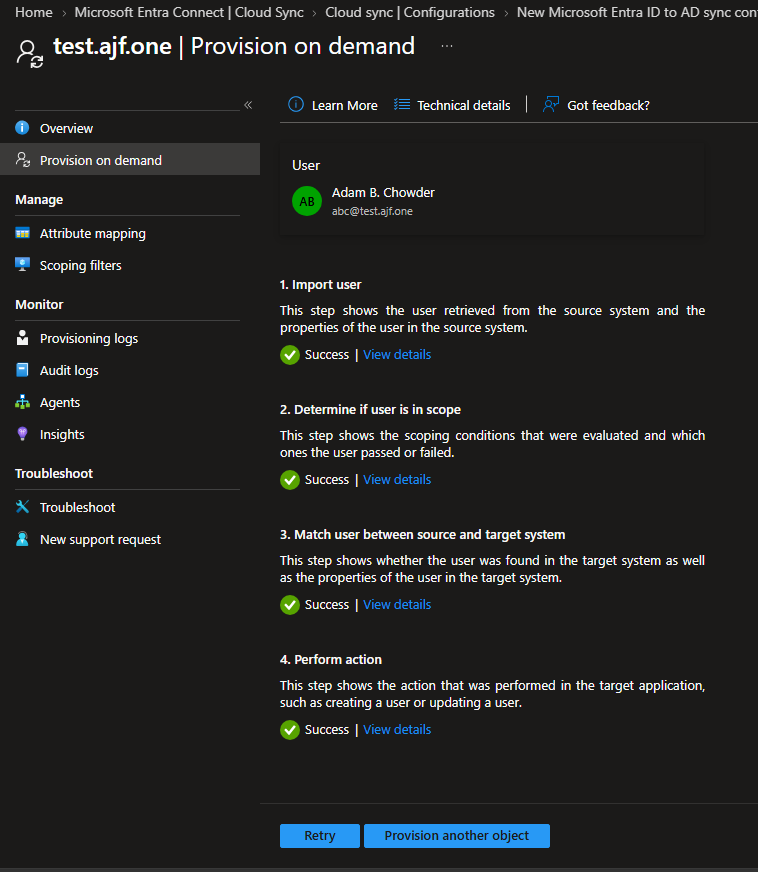
We can also verify that the user object was created in AD directly. Woohoo!
Testing the Configuration – SoA Takeover
Now let’s take over an existing synced user account. Here you can see I’ve got a currently on-premises synced user account that I want to take over:

I’ve added it to the group I specified in the Entra to AD configuration, but currently, nothing will happen, as it is still “owned” by AD. In order to break that and let the Entra to AD configuration take it over, we need to use Graph to disable the onPremisesSyncEnabled property:
|
1 2 3 4 5 6 7 8 9 10 11 |
Connect-MgGraph -Scopes 'User.Read.All', 'User-OnPremisesSyncBehavior.ReadWrite.All' $UserID = 'win@test.ajf.one' $isCloudManaged = @{ isCloudManaged = $true } $JSONisCloudManaged = $isCloudManaged | ConvertTo-Json -Depth 10 Invoke-MgGraphRequest -Uri "https://graph.microsoft.com/beta/users/$UserID/onPremisesSyncBehavior" -Method PATCH -Body $JSONisCloudManaged -ContentType 'application/json' -Verbose |
Quick note on that above code, $UserID can either be the user’s object ID or UPN. After running this, we can see that on-premises sync behavior is now disabled:

Now let’s try to on-demand provision this user to take it over:
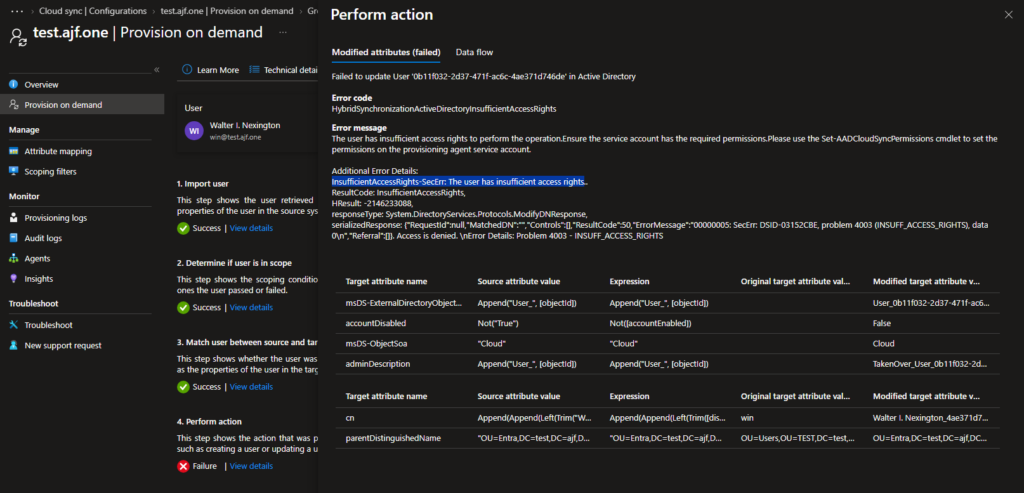
Well, it failed. But why? So here is where I learned about how “protect object from accidental deletion” works in AD. By default, when you create an OU, the setting is enabled on it, creating a special deny Everyone ACE on the OU permissions:
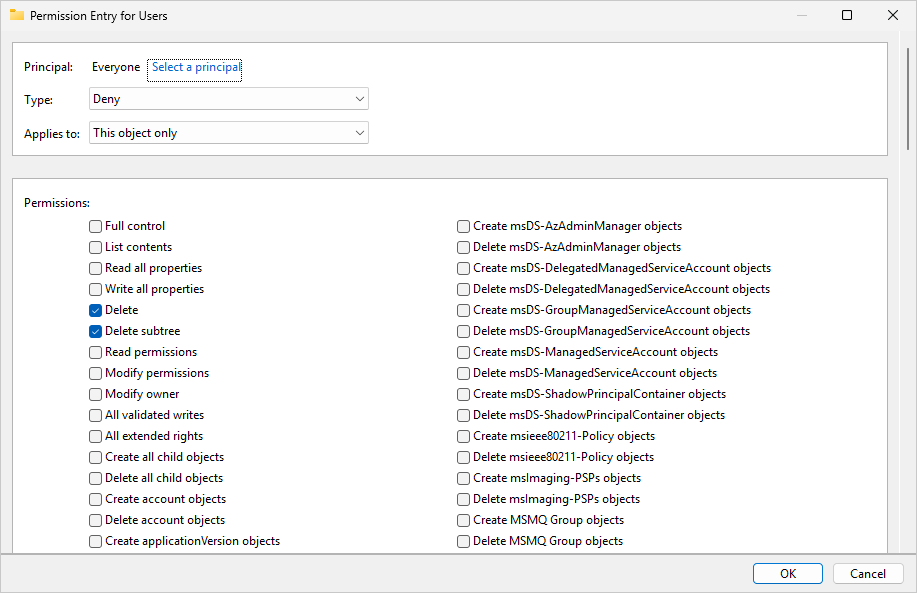
This is how it looks on an object with nothing underneath it that additionally has/had the some protection enabled. Here’s what happens to that ACE when another OU is created underneath it:
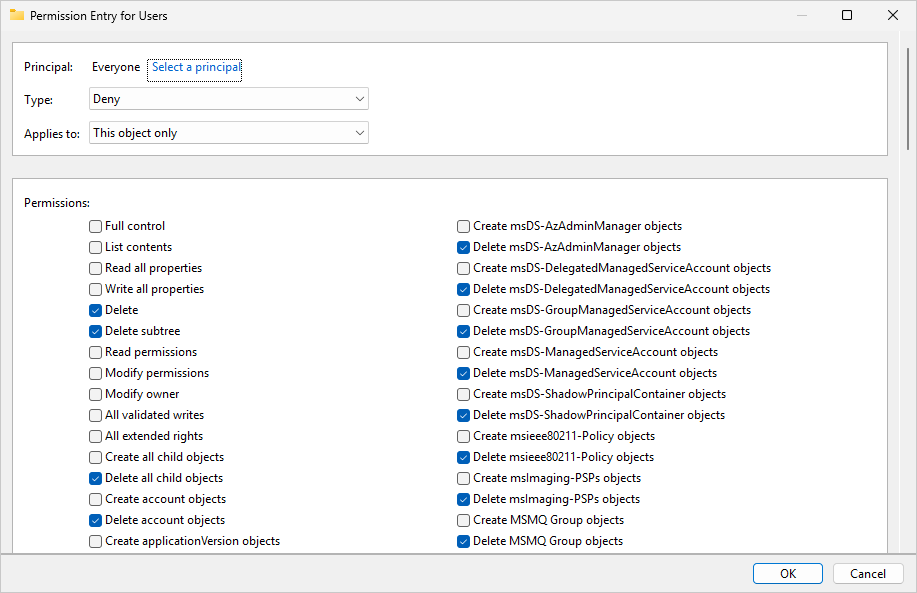
Note the additional “delete all child objects” deny permission. These permissions are documented here – https://learn.microsoft.com/en-us/previous-versions/windows/it-pro/windows-server-2003/cc736842(v=ws.10)?redirectedfrom=MSDN.
This is preventing the SoA takeover, as the service account cannot move the user object to the new OU (a move operation consists of a delete operation at the source and a create at the destination). In order to fix this manually, the permissions for the ACE need to be cleared using the clear all button at the bottom, and then re-selecting Delete and Delete Subtree, so it looks like it did prior. After fixing this, and attempting to provision on demand again, we have success!
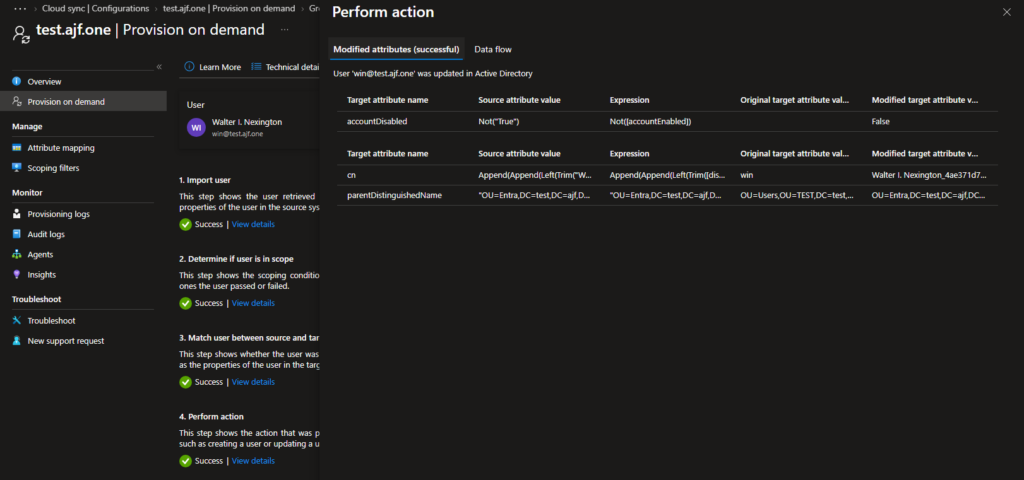
I believe there is a high likelihood that many folks will run into this issue, when you think about the churn over the years of OU creations and deletions, object moves, and accidental deletion protection even being enabled on user accounts directly.
SoA Enforcement
In additional to SoA swap, Microsoft has also added the ability to enforce SoA policies to prevent any modifications directly in AD for SoA swapped objects (https://learn.microsoft.com/en-us/entra/identity/hybrid/cloud-sync/how-to-active-directory-object-enforcement). To configure this, you will need to apply a KIR GPO to your domain controllers to enable a feature, and configure your attribute mapping in your sync config to set the msDS-ObjectSoa attribute to “Cloud” (which is set by default on new configurations). Once configured, if you try to modify a SOA swapped object, even as a domain admin, you will see the following error:
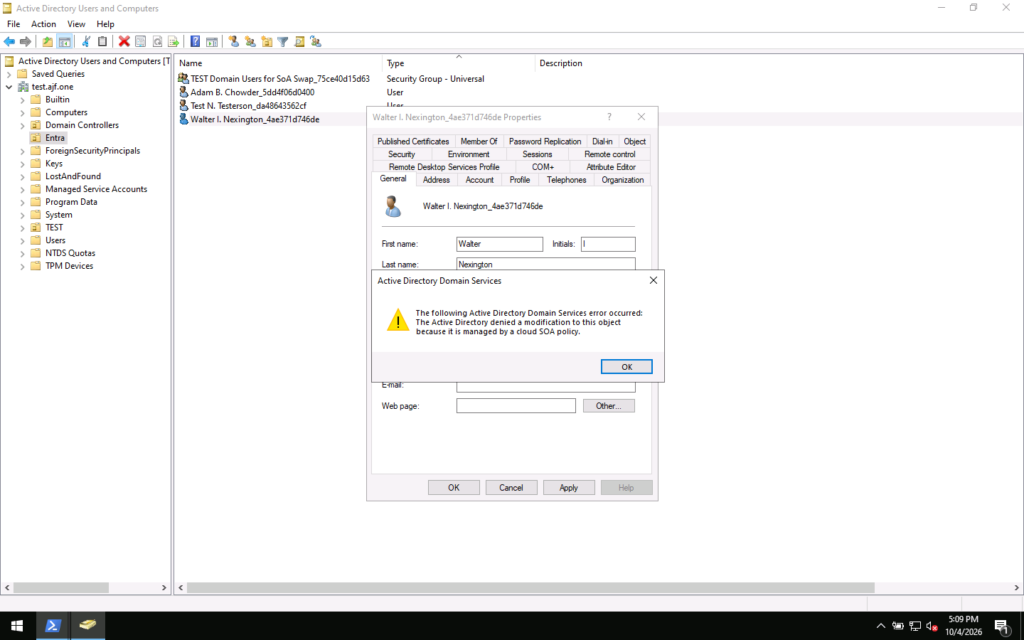
However, I have only been able to get this enforcement to work as expected in a domain with Server 2022 domain controllers. My 2025 domain does not appear to work, and I still have not been able to figure out why, as 2025 DCs are supported. If you test this and get it to work on 2025, I would love to know about it!