

Now that the the “Azure AD based Windows Login” extension is available (docs here), a Windows server running in Azure or that is Arc-enabled can now be signed into via Entra ID. When I saw this, I immediately wanted to see if this could be taken a step further: providing fileshares secured via Entra authentication. Of course, I also wanted this to be internet-facing, utilizing SMB over QUIC (docs here). This turned out to actually be really easy to do!
Step 1: Configuring the Server!
Not going to go into to much detail here, as the necessary items are documented in the above links. I decided to go with a Server 2025 VM running in Azure, and installed the AADLoginForWindows extension during configuration.
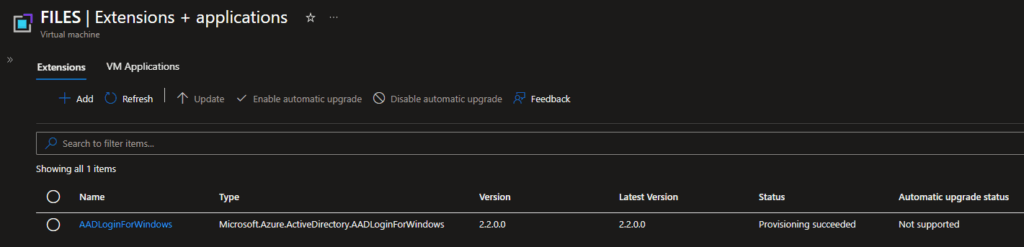
Once the VM was up and running, I created a public DNS record for it (files.cloud.ajf.one), and issued a publicly trusted server authentication certificate for it (needed for SMB over QUIC). Next I configured SMB over QUIC using the PowerShell commands in the documentation, verified the local firewall rules are enabled, and added a firewall rule to the Azure Network Security Group (NSG) to open UDP 443 from anywhere.
$serverCert = Get-ChildItem -Path Cert:\LocalMachine\My |
    Where-Object {$_.Subject -Match "files.cloud.ajf.one"}
New-SmbServerCertificateMapping -Name 'files.cloud.ajf.one' -ThumbPrint $serverCert.Thumbprint -Storename My

Step 2: Configuring the Fileshare!
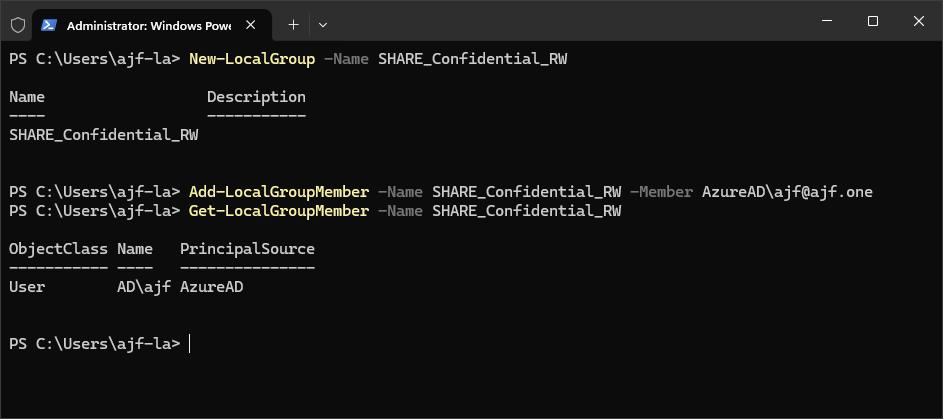
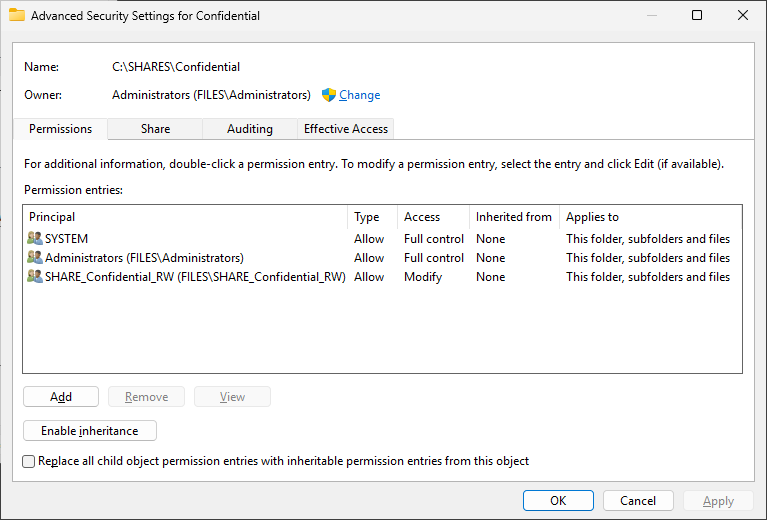
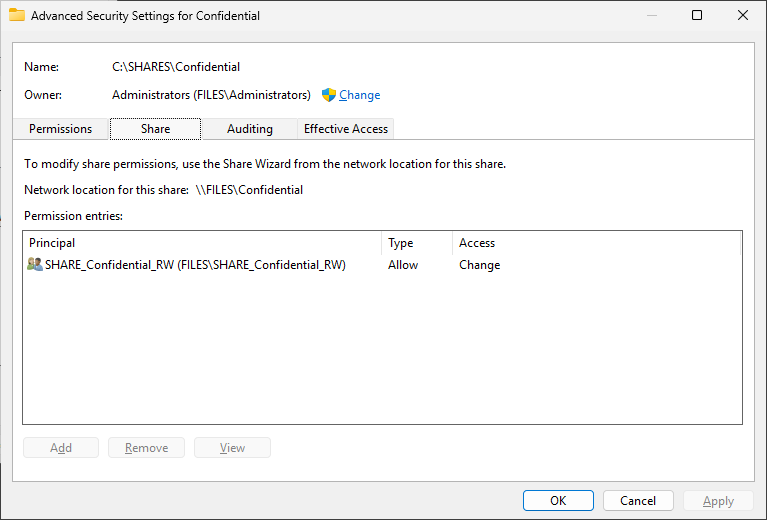
Next up, creating a new fileshare, not too much new here. Install the File Server role, create a folder, and share it. So, this is where things get a little tricky. We need to grant Entra accounts permissions to the share, which can be done with PowerShell, but this goes against using groups for access (you cannot grant Entra groups permissions). So what do we do here? Create a new local group and add Entra users to that!
Step 3: Accessing the Fileshare!
All right, now I have a new fileshare accessible via \\files.cloud.ajf.one\Confidential, now let’s test accessing it! First, we’ll test on an Entra-joined Windows 11 24H2 client. Just do the normal thing to do to browse to a fileshare and boom, we’re in!
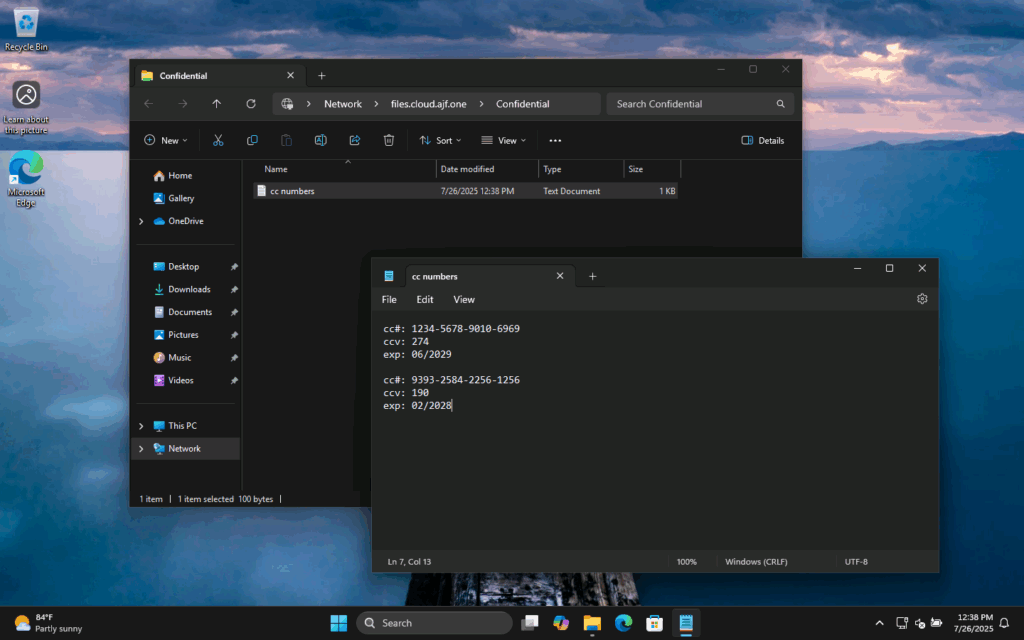
Now, how did that even work? This VM was just run though Autopilot using MFA, and signed into with WHfB; a password has never been used. Connecting to the fileshare did not prompt for any authentication. Well, it’s working due to a feature called Public Key User to User (PKU2U) authentication. If you’ve ever noticed an app registration in your tenant called “P2P Server”, this is part of the process. Let’s look at our users personal certificate store after connecting to the fileshare:

If we checked this cert store prior to first connecting, this cert would not have existed yet (provided nothing else that utilizes PKU2U has been used before, as this is also how RDP between two Entra-joined devices works). There’s a great post here https://www.jasonfritts.me/2019/09/26/what-is-the-azure-ad-service-principal-p2p-server-for/ that goes over this app registration in a bit more detail.
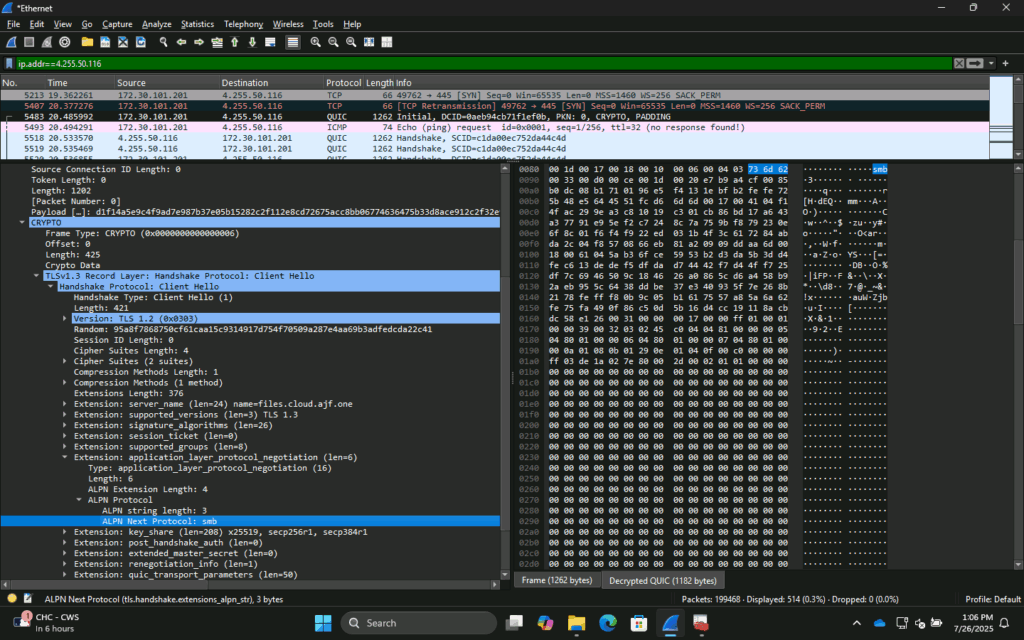
I did dive into Wireshark a bit to see what was going on, and while I’m not an expert, I saw a bit of what was going on. Here we can see the initial QUIC conversation starting, after traditional SMB over TCP 445 was attempted and failed.
After all that, I wanted to try to access the fileshare from a hybrid-joined device. Now, I was initially split on this, half thinking it wouldn’t work, and the other half saying of course it would work. I went to test it, and it failed. But then I had remembered that I recently disabled a setting related the PKU2U on domain/hybrid joined devices due to a recent security vulnerability (https://msrc.microsoft.com/update-guide/en-US/advisory/CVE-2021-25195). Once I re-enabled this, it worked in the exact same manner as on the Entra-joined device!

Note that the setting is worded in such a way that it sounds like it is online enforcing inbound authentication requests to the device. It is actually managing both directions, which is likely due to be lack of full understanding as to how PKU2U functions. Either way, this setting is normally enabled if left unconfigured.
Conclusion
So, what can we do with all of this? SO we can put file servers on the internet, and not rely on the server being domain-joined for AuthN/AUthZ, and also not need to open TCP 445 for traditional SMB. We’re protecting the traffic using TLS 1.3/1.2 and a public certificate. On the client side, Windows 11 is required for SMB over QUIC, but with Windows 10 going EoL in just under 3 months, this shouldn’t be a major concern.
SMB over QUIC should work much better that traditional SMB, due to how it uses UDP instead of TCP and how the protocol works in general (see the SMB over QUIC docs linked at the top for more information).
One minor drawback is how to deal with the share permissions. I used local groups on the server itself to control access, similar to how we would normally use domain local groups for a domain-joined file server. Since we can’t directly utilize Entra groups, we would need to potentially come up with some sort of Azure automation solution to update the local groups based on Entra groups, or log into the server manually to make access changes.
I am hoping to play around with this a bit further and seer what is possible, but for now, this is a great starting place to provide secure, internet-facing file servers, accessed via the same well-know existing process, and still seamlessly authenticating, without having to rely on the server being domain-joined. If you try this out, please feel free to let me know what you think!
This is awesome! Has anyone found a way to sync groups from Entra to the server?
This is very interesting. So then you could add Azure FIle Sync on top of that and you could have server like this placed in different locations
Potentially, yes? LOL, not anything I’ve works with myself, sounds like you could sort of replicate a classic DFS-R configuration, but hopefully running a bit better using more efficient protocols. I just love the idea of running SMB over the internet!
Hi Anthony,
thank you very much for the really helpfull article. I was asking a lot of cosultants and also this week an expert of Microsoft. And all of them could not deliver me a solution how we can map a fileserver withour an Active Diretory Domain oder EntraDS. But we want to change over to Entra Only without any onpremise Active Diretcory and we still need to use Fileserver maped drives. So this is the solution, I also showed it to Microsoft and they were suprised that this is working and they were not aware of that because many customers asking for such a solution.
What is important, that you choose the right server version, we used at the end 2022 Azure Edition and that you activate the possibility that Entra user can login, that the server is Azure Joined. It is not enough that the Extension is installed. After that, ervything is working now. We thinking at the moment, how we can syncronize easy the user from a Entra Security Group to the Server via a job. But we will be able to solve that.
Thanks a lot again.
Martin
Thanks, I appreciate your comments! Yes, the OS version matters like you said, if it’s in Azure it has to be 2022 or better, if you run it on-premises it has to be 2025 and Arc attached (which is what I played around with). I mostly did this just to see if it could be done, when the new extension was announced; it seemed like a good solution for traditional file services but delivered in a more modern way. I came up with some ideas for “syncing” the group membership but never got around to trying it, I’d imagine there’s a way to automate it via the cloud somehow, some sort of Azure Automation job or whatever it’s called nowadays (a runbook I think?).
If the groups are hybrid synced from AD it might be possible to add them like this:
icacls “C:\path\to\folder” /grant “AzureAD\onpremisesSID:F”
Could you try it in your test environment? Would take me a while to set it up.